How to format JSON: indent, sort keys, and minify
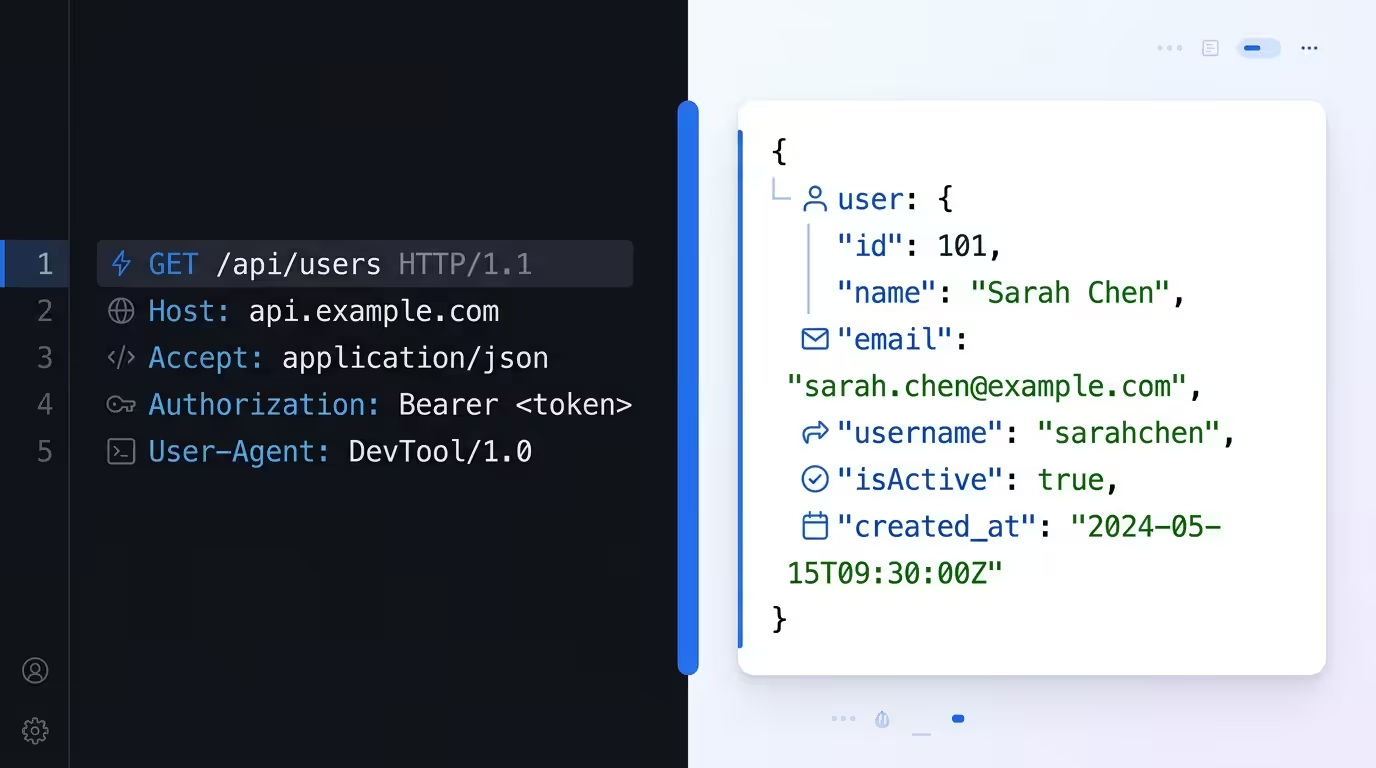
You get a JSON blob back from an API. One long line, no spaces, nothing readable. Here is what to do with it.
What formatting actually does
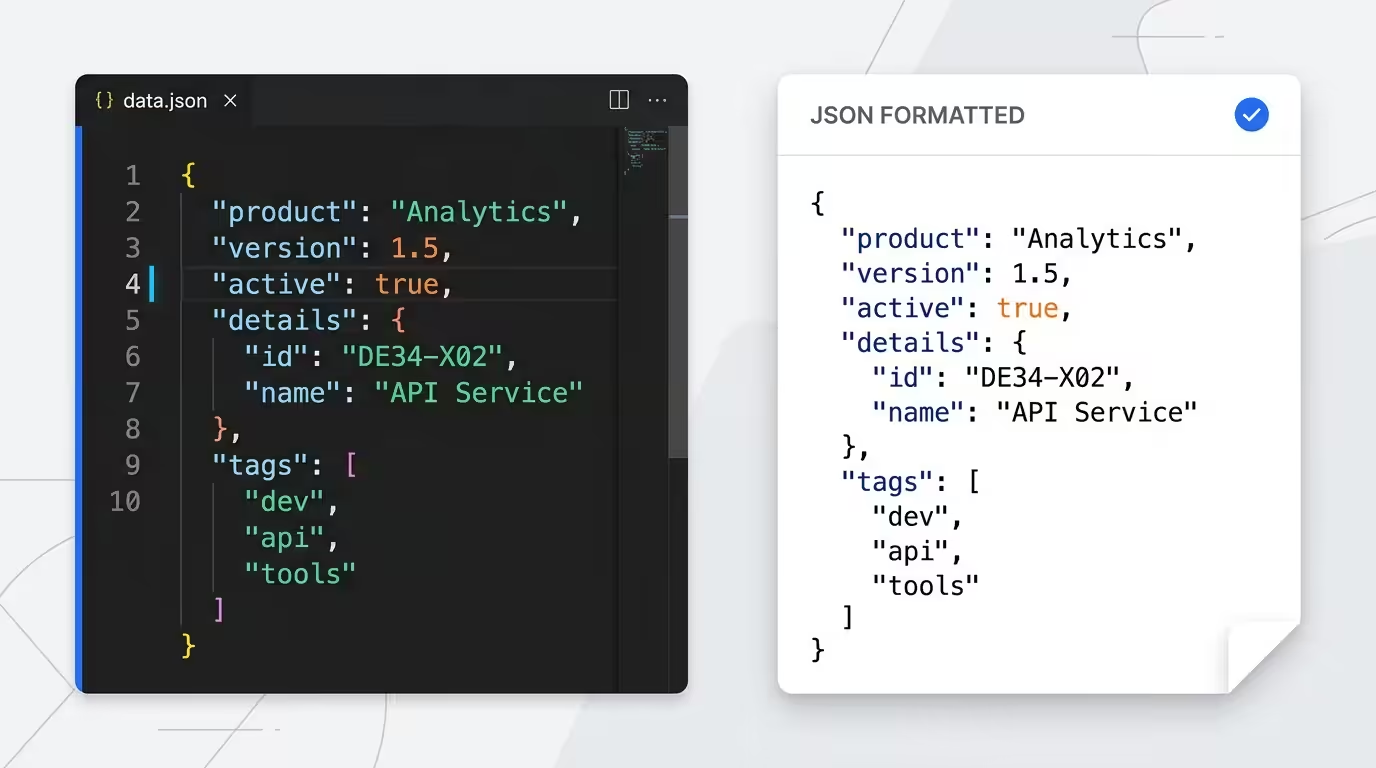
Formatting JSON adds whitespace — line breaks and indentation — so the structure is visible. The data itself does not change. A formatter just calls JSON.stringify(parsed, null, 2) under the hood, where 2 is the number of spaces per indent level.
// Before
{"name":"JSON Lab","private":true,"tools":["viewer","formatter"]}

// After — 2-space indent
{
  "name": "JSON Lab",
  "private": true,
  "tools": [
    "viewer",
    "formatter"
  ]
}
Choosing your indent size
Two spaces is the most common choice in JavaScript projects. Four spaces is standard in Python. If you are copying output into a config file, match whatever the file already uses. The JSON Formatter on this site lets you pick 2 spaces, 4 spaces, or a tab before you run it.
Sorting keys
When you format JSON with sorted keys, every object’s properties come out in alphabetical order. This makes diffs cleaner and helps you find a key without scanning the whole object. Enable “Sort object keys” in the formatter before hitting Format JSON.
Minifying
The reverse of formatting is minifying: strip all whitespace so the JSON is one line. Use this before sending data over a network or storing it in a field where size matters. The formatter’s Minify button does this without changing the values.
When formatting fails
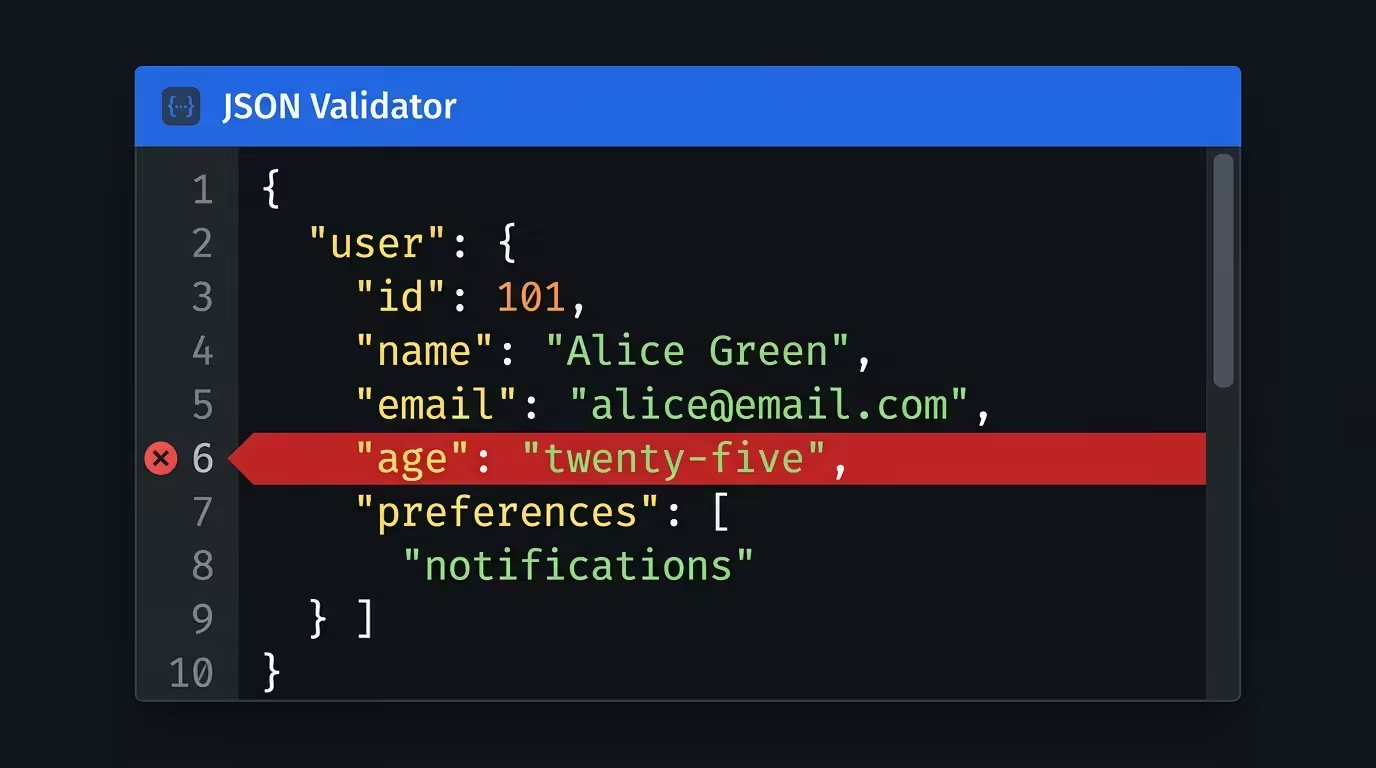
If the formatter shows an error, the JSON has a syntax problem. The error message tells you the line and column where parsing stopped. Paste the same text into the JSON Validator to get a plain-English description and, when possible, a corrected copy you can copy straight out.
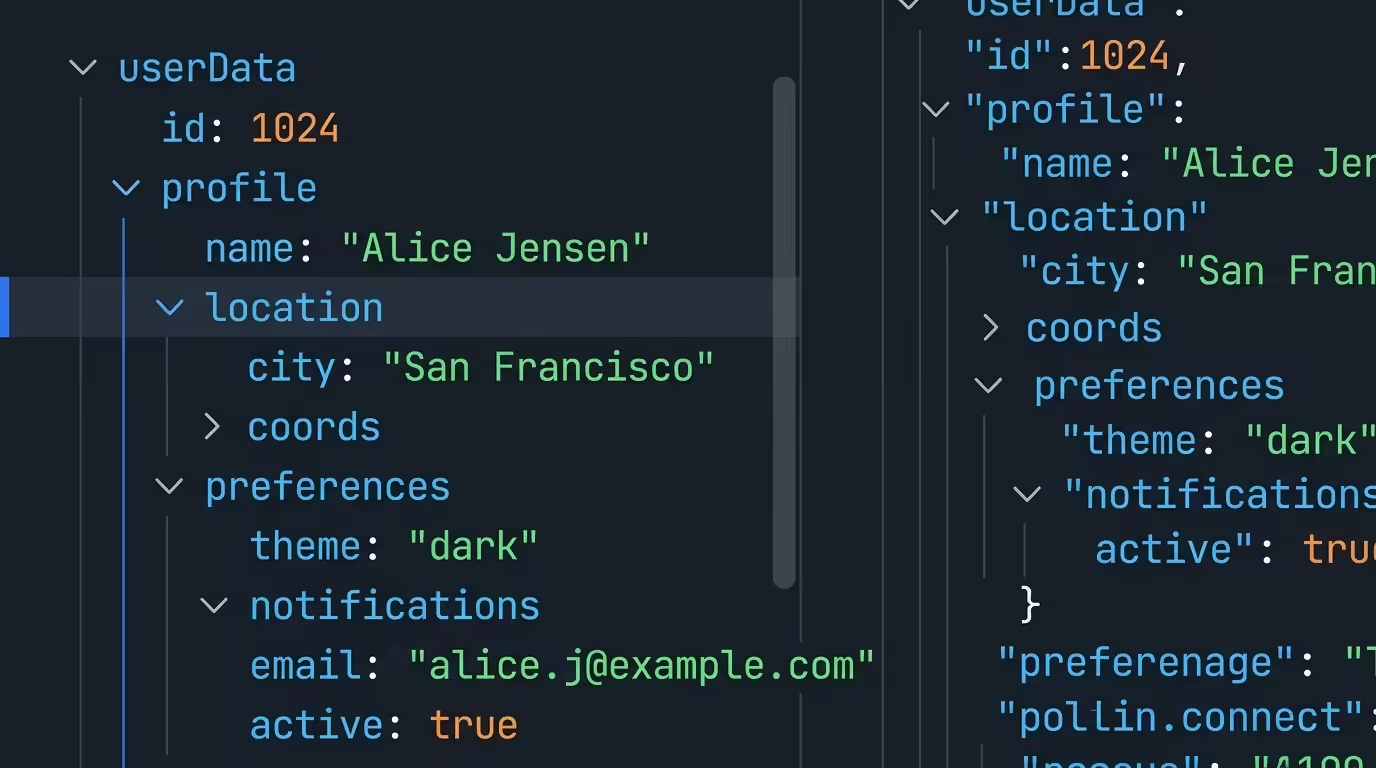
Once the JSON is readable, the JSON Viewer lets you explore it as a collapsible tree — useful when the object is deeply nested and you only care about one part of it.